
Time Tracker with Custom Fields
Create custom time tracking fields for projects, tasks, and team members — and structure your workspace your way.
Start 14-Day Free Trial
Design and Configure Your Own Time Tracking Structure
Custom fields in time tracking expand what your company can measure, control, and improve. Instead of adapting your operations to predefined categories, your time tracker adapts to your business structure. Examples of custom fields:
Software teams operate in sprints, track complexity, and differentiate by seniority level.
Accounting firms manage tax seasons, client tiers, and specializations.
Agencies structure work by campaign type and billing model.
Construction companies track job sites, certifications, and shift types.
With custom time tracking fields, you define these dimensions yourself. You create a custom column field, assign it to tasks, projects, or members, and it becomes part of your operational structure.
Use Every Custom Field You Create as a Filter
Instead of viewing a flat list of hours, you use the custom field as a filter:
Hours per department
Time distribution by location
Cost analysis by employment type
Workload by seniority level
Productivity by specialization
The more structured dimensions you define, the more precisely you can analyze performance, cost, workload, and operational efficiency.
Custom fields for tasks
Tasks often need more structure than just a name and a project. With custom time tracking fields, you can define exactly what additional information must be attached to each task.
For example, you can add fields such as:
Sprint
Priority
Complexity
Phase
Billing Type
Service Category
This means that when you generate reports, you can filter and group time entries based on the task’s assigned sprint, priority, complexity level, or any other custom field you’ve defined.
Custom fields for projects
With custom fields in project time tracking, you can define exactly how projects should be structured inside your workspace.
You can add project-level fields such as:
Client Tier
Contract Type
Fixed-Price or Hourly
Industry
Region
Tax Season
Department Owner
Project Category
Such customizable fields allow you to filter reports by contract type, compare time spent across client tiers, analyze workload by industry, review effort distribution by department owner, evaluate time allocation during specific seasons or periods, and many more.
With custom time tracking fields applied to projects, reporting becomes aligned with how revenue, priorities, and operations are structured inside your business.
Custom fields for members
Custom fields in time tracker also allow you to structure how team members are defined inside your workspace. Instead of limiting profiles to just a name and role, you can build a structured workforce layer directly within WebWork.
You can add member-level fields such as:
Department
Role
Seniority Level
Employment Type
Location
Hourly Rate
Team Lead
Contract Start Date
Certification
Specialization
Each custom field becomes part of the member’s profile data. Then when members track time, you can filter reports using these member attributes.
These custom fields allow you to analyze hours by department, compare workloads across seniority levels, evaluate cost allocation based on hourly rates, identify how work is distributed across employment types, filter productivity data by specialization, and more.
What Types of Custom Fields You Can Create
WebWork gives you multiple field types so you can structure data exactly the way your operations require. Each custom column field integrates directly into time tracking reports, ensuring that the information you define becomes measurable and actionable.

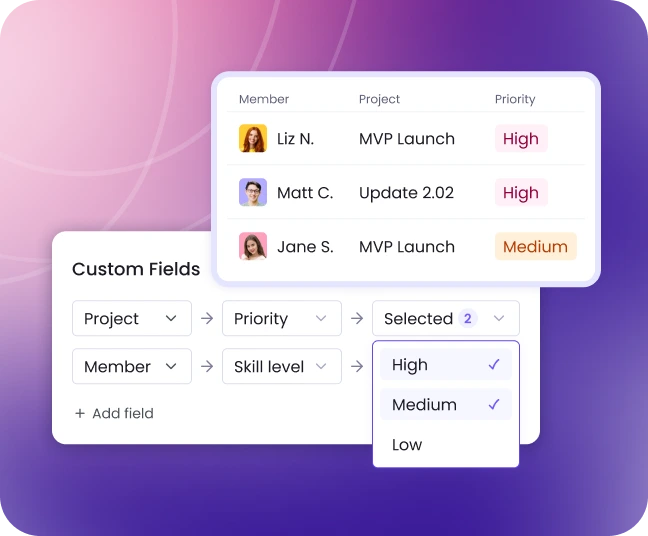
Advanced Reporting with Custom Time Tracking Fields
The real power of custom fields in time tracking becomes clear in reports. With the help of custom fields you can build multi-dimensional reports that reflect how your business operates.
Moreover, you can combine multiple custom time tracking fields in a single report, allowing you to segment and refine your analysis with precision.
How to create custom fields in WebWork?
- Go to the page you want to create custom fields for, such as Projects, Tasks, or People> Members.
- Click Create Project, Create Task, or click the member you want to add custom fields to.
- Select Custom Fields.
- Click Create new field.
- Select the type such as text, dropdown, or date.
- Fill out the necessary fields such as the name.
That’s it. Now you can filter each report by the custom fields you created.
How to filter reports by custom fields?
- Open the report of your choice.
- Click Custom Fields.
- Select the project, member, or type.
- Select the field type such as date, text, or checkbox.
- Click Apply.
You can select as many fields as you need to filter the report.

FAQ
Custom time tracking fields are additional structured data points that you create inside your time tracker. They allow you to define how projects, tasks, and team members are categorized beyond the default fields. Each custom field becomes part of your data and can be used in filters and reports.
Default fields (such as task name, project name, or member name) are predefined by the software. A custom column field is created by you and reflects how your business operates — such as Sprint, Client Tier, Department, Billing Type, or Seniority Level. Custom fields in time tracking give you full control over how work is structured and analyzed.
Yes. You can create multiple custom fields for tasks, projects, and members based on your business needs. The more structured fields you define, the more detailed and precise your reporting becomes.
You can create custom fields in time tracker for projects, tasks, and members.
Yes. This allows you to filter reports by the custom fields you’ve created.
Yes. WebWork allows you to combine multiple custom time tracking fields within a single report. For example, you can filter by Client Tier and Department, or group by Sprint and drill down by Complexity. This enables multi-dimensional reporting based on your business structure.
Yes. You can update field names, modify dropdown options, or remove a custom field if your business structure changes. This ensures your time tracking setup remains flexible as your company evolves.


Voted Top Time Tracking Software of 2026
Elevate Time and Team Management with Custom Fields on WebWork
Start 14-Day Free Trial
Book a Demo
No credit card | Cancel anytime