
Productivity Insights: Employee Productivity Metrics
Productivity Insights turns tracked time into employee productivity metrics. See how your team spends their work hours, measure activity levels, compare office vs remote performance, and identify productivity patterns—all in one dashboard.
Time Tracking Data That Actually Tells You Something
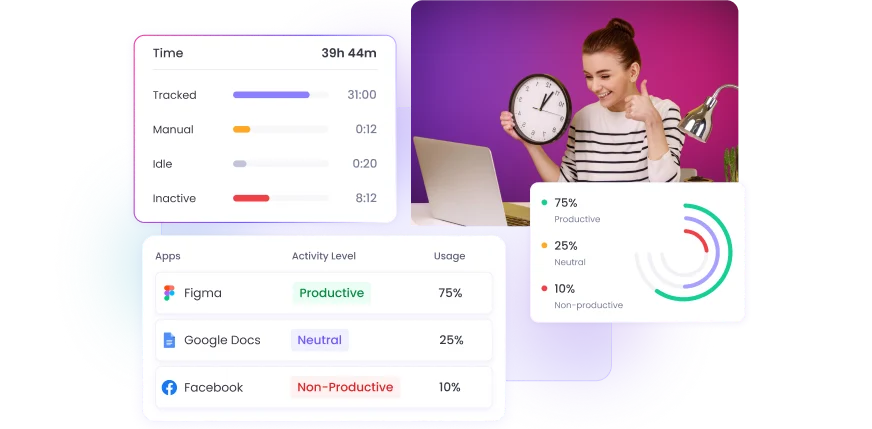
Get a complete picture of how your team members spend their work time beyond tracked hours—active vs inactive time, productive vs non-productive apps, focus time vs shallow work, and real comparisons between office and remote performance. No more guessing or assumptions. Just accurate productivity insights based on real data.

Everything You Need to Measure Productivity
Time breakdown
See exactly how your team's time splits across active time, inactive time, idle time, manual entries, paid leave, breaks, and holidays. Understand where hours actually go.
Productivity score
Get a clear productivity percentage for each member. WebWork categorizes time as Productive, Neutral, Non-productive, or Unset based on the apps and websites used during tracked hours.
App & website usage
See which apps and websites your team uses during work hours. Filter by Productive, Non-Productive, or Neutral to understand where time goes. Activity levels and inactive time are shown per app.
Activity level
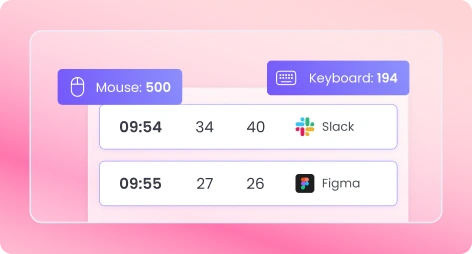
Compare each member's activity level against workspace averages. Activity is measured by mouse clicks, scrolling, and keyboard strokes—giving you an objective engagement metric.
Engagement level
Go deeper into activity with engagement metrics: mouse clicks, scroll activity, and keyboard strokes percentages. See exactly how your team interacts with their device.
Work Mode Overview
Understand how your team's time breaks down by work type.
Focus Time
High-activity work without distractions.
Shallow Time
Lower-activity work with lighter engagement.
Meeting Time
Time spent in meetings and calls.
Paid Time Off
Break periods and time off.
Undefined
Time that doesn't fit other categories, often manually added entries.
Office vs Remote: Compare Productivity by Location
See how location impacts your team's performance. WebWork provides side-by-side comparisons of activity levels and productivity between office and remote workers.
Activity Level
Office vs Remote — Compare average activity percentages across locations over time.

Productivity Level
Office vs Remote — Compare productive time percentages to see where your team performs best.

Use this data to make informed decisions about hybrid policies, remote work eligibility, and team scheduling—based on real workforce productivity insights, not assumptions.
Four Ways to View Productivity Data
Per Member
The Per Member view is the default view where you see individual productivity metrics with visual graphs and charts.
Per Team
Aggregate productivity data by team and identify which teams are most productive and where support is needed.
Per Title
Select a job title and see productivity data for every member who holds it. Titles span teams, so the data covers the full role.
Workspace
The Workspace view shows you productivity data for your entire organization. Available to Executive Managers and Workspace Owners.
Benchmarks: Compare Against Industry Peers
See how your team performs compared to similar roles, teams, and industries using WebWork.
By Member: Compare individual performance against users with similar job titles.
By Team: Compare team metrics against teams with similar responsibilities.
By Workspace: Compare your organization against workspaces in the same industry.
Benchmarks are available for Productive Time, Activity Level, Inactive Time, Focus Time, and Meeting Time on Plus and Premium plans.

KPIs: Set Your Own Productivity Targets
Set a target for each productivity metric and see whether your workspace, teams, and job titles are meeting it. Workspace Owners and Executive Managers set KPIs at workspace, team, or job title level, and Team Managers set them for the teams they manage.
You can set KPIs for the following metrics:
Average Activity Level
Average Inactive Time
Average Productive Time
Average Meeting Time
Average Focus Time
KPIs are available on Plus and Premium plans
Why Teams Use WebWork for Employee Productivity Insights
Make decisions based on data
Stop guessing who's productive and who's struggling. WebWork gives you accurate productivity insights for time tracking so you can have informed conversations, allocate resources effectively, and support your team where it matters.
Identify patterns before they become problems
Spot declining activity levels, increasing inactive time, or productivity drops early. Teams using WebWork address issues before they impact deadlines or team morale.
Support remote and hybrid teams fairly
With Office vs Remote comparisons, you can evaluate performance objectively regardless of location. WebWork allows you to build hybrid policies for your team based on real data.
Give employees visibility into their own performance
Employees can see their own productivity insights for time tracking, helping them self-correct and stay accountable without constant manager oversight.
More Features to Boost Team Productivity
App & Website Monitoring
See exactly which platforms your team uses and label them as productive or non-productive.
Work-Life Balance
Monitor work patterns to prevent burnout and ensure healthy work hours.
Real-Time Monitoring
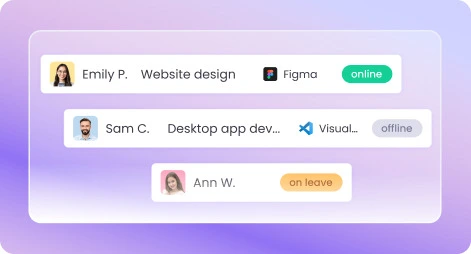
See what your team is working on right now—live project, task, and app visibility.
FAQ


Voted Top Time Tracking Software of 2026
Get Accurate Productivity Insights for Time Tracking
No credit card | Cancel anytime